 Alex Carter
Honestly, there was a moment during one long workday when I realized my eyes felt like they had been through a workout session—dull, strained, and begging for mercy. It hit me that my multi-monitor setup, which I thought was optimized, was secretly sabotaging my productivity and health. I had tried all the usual fixes—better lighting, screen filters, even blinking more—but nothing seemed to help with that persistent fatigue. That little lightbulb went off: the real culprits might be how my monitors were positioned and whether my monitor arms were doing their job.
Why Your Screen Setup Might Be Sabotaging Your Energy and Focus
After a lot of trial and error—and plenty of research—I discovered that the way my monitors sat was a major factor in my fatigue. If your screens are slightly misaligned or poorly positioned, your neck, shoulders, and eyes have to work overtime, leading to discomfort and decreased productivity. And in 2026, with our screens more vital than ever, ignoring proper ergonomics can have serious consequences. According to recent studies, poor display positioning can cause digital eye strain, which affects up to 80% of digital device users. That’s a huge number, and it was a wake-up call for me to rethink my setup.
Could Your Monitor Arms be Holding You Back?
One mistake I made early on was assuming that just buying a set of monitor arms would automatically improve my setup. I didn’t realize that not all arms are created equal, and failing to tweak them correctly only added to my screen fatigue. It’s tempting to set it and forget it, but the real magic comes from making targeted adjustments—things like height, tilt, and depth—that fit your unique workspace and body. So, are your monitor arms truly working for you, or are they just eye candy? If your screens aren’t aligned properly, it’s time to learn some simple tweaks that can make a huge difference.
In the next sections, I’ll share exactly how I adjusted my monitor arms and what to look out for. We’ll cover the best positions for minimizing neck strain, how to prevent glare, and some pro tips on maintaining a healthy, fatigue-free viewing experience. Ready to reclaim your energy and make your workspace work for you? Let’s dive into those tweaks and turn that fatigue into focused productivity!
🤝 Have you faced similar screen fatigue issues with your setup? Drop your experience in the comments—I’d love to hear what’s worked (or not) for you.
Adjust Your Monitor Height for Comfort
Start by ensuring your monitor’s top edge is at or just slightly below eye level. Sit back in your chair and look straight ahead; the screen should be within your natural eye line. I once spent an afternoon tinkering with my monitor so that the top was aligned perfectly with my eyebrows — it made a noticeable difference in reducing neck strain, and I felt less fatigued at the end of the day. Using your standing desk guides can help you set the correct height for your setup.
Tweak the Distance and Angle
Position the monitor about an arm’s length away—roughly 20-30 inches — to prevent eye strain. Tilt the screen slightly upward, so you’re naturally looking down at it rather than up. I once noticed my neck hurt after hours of viewing, which I corrected by tilting my monitor a few degrees upward. Remember, a little adjustment can go a long way in decreasing fatigue. For further tips, check this article on ergonomics.
Organize Cables and Accessories
Cluttered cables can cause distraction and even pull your monitor out of ergonomic alignment. Use cable trays or clips to tidy up your wires underneath or behind the desk. I employed discreet cable clips to keep everything neat, which allowed me to reposition my monitor without worrying about tugging cables. Organized cables contribute to a clean workspace, making adjustments smoother and quicker.
Implement Proper Lighting
Lighting plays a crucial role. Position your monitor perpendicular to windows to avoid glare. Use adjustable blinds or curtains and supplement with a desk lamp with ambient light. I used to stare directly at bright windows, causing eye fatigue. Moving my monitor away from light sources and adding a soft light source behind my screen helped reduce eye strain significantly.
Optimize Monitor Arms for Flexibility
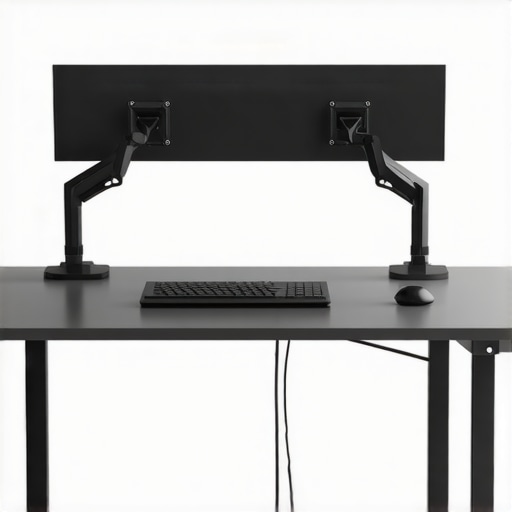
Invest in quality monitor arms that support full range of motion. Attach the arms to a sturdy desk—preferably one that supports weight without wobbling. During setup, I loosened the arm joints and gradually moved my monitors into the optimal position, tightening screws only after perfect alignment. Tighten everything securely to prevent drift over time. For detailed setup tips, refer to stability fixes for standing desks.
Test and Reassess Regularly
Set a timer every few weeks to reassess your monitor position. Slight changes in your posture or workspace layout can impact comfort. I noticed my neck starting to tense again after a month and re-adjusted my monitor slightly higher. Remember, ergonomic setup is not a one-time fix—continuous tweaks lead to sustained comfort and productivity.
Many assume that investing in a standing desk or ergonomic chair automatically boosts productivity and reduces fatigue, but the truth is far more nuanced. One common misconception is that all standing desks are equally beneficial; however, without proper setup, even the best-standing desk can become a source of discomfort. For instance, an excessively high or low desk forces your body into unnatural postures, causing strain that undermines your efforts. It’s crucial to tailor your desk height precisely, considering your unique body measurements—something that many overlook. Advanced users should also pay attention to the desk’s width and depth to ensure your elbows and wrists are supported comfortably, preventing repetitive strain injuries. According to ergonomic expert Dr. Mark Seibold, improper desk height can negate the benefits of an ergonomic chair, leading to persistent discomfort despite high-end equipment.
Similarly, assumptions around office chairs often lead to overlooked issues. Many think that a chair with adjustable lumbar support guarantees comfort, but if the lumbar pad is set incorrectly or ignored altogether, it can exacerbate back pain. Instead, focus on engaging the lower back muscles actively and adjust the lumbar support to fit the natural curve of your spine. Also, beware of the “set it and forget it” mentality; your posture shifts throughout the day, requiring periodic readjustments.
Desk storage is another area riddled with misconceptions. Many believe that cluttered surfaces are a sign of disorganization; in reality, poor storage solutions can lead to inefficient movements and increased search times for essential items. Implementing vertical storage or modular drawer systems can streamline workflow, but only if arranged thoughtfully. Overstuffed drawers or poorly placed shelves force you into awkward twisting or reaching motions, which can cause long-term musculoskeletal issues. For example, using [discreet cable clips](https://homeoffice.techgearshowcase.com/5-hidden-desk-storage-spots-for-a-cleaner-2026-setup) not only tidies up your workspace but also minimizes the risk of accidental tugs that could destabilize monitors or equipment.
When it comes to home offices, many build their setup based on the room’s dimensions rather than ergonomic principles, leading to mismatched furniture and poor lighting. A crucial but often missed point is the importance of alignment and scale. For example, a giant desk in a small room might seem impressive but can cramp your movement and cause you to adopt strained postures. Instead, consider adjustable or modular desks that adapt to your space constraints while maintaining ergonomic standards. Check out the [best workspace layouts](https://homeoffice.techgearshowcase.com/standing-desk-guides-best-ergonomic-setup-for-your-home-office-in-2024) for inspiration.
Advanced practitioners should also incorporate less obvious adjustments such as monitor tilt, keyboard height, and even foot positioning. These small details cumulatively impact your overall comfort and productivity. Remember, setting up your workspace isn’t a one-and-done task; it requires ongoing fine-tuning—something that separates a truly ergonomic setup from a superficial one.
Have you ever fallen into this trap? Let me know in the comments if overlooked details have sabotaged your productivity, and share your own tips for avoiding these pitfalls.
How Regular Checks Prevent Ergonomic Breakdown
Maintaining your home office setup isn’t a one-and-done task; it requires consistent attention to keep everything functioning optimally. I recommend scheduling a quick ergonomic audit every month, where you revisit your monitor height, chair adjustments, and cable management. Similar to how regular car maintenance prevents breakdowns, routine checks ensure that your workspace remains comfortable and efficient. Leveraging tools like a simple spirit level or a flexible measuring tape can help verify your monitor height and desk alignment, preventing long-term strain. Over time, components like monitor arms may loosen or shift—tightening these periodically guarantees stability and preserves your setup’s ergonomic integrity, much like maintaining a precision machine.
Use Smart Tools for Long-Term Comfort
Investing in quality tools is key to a sustainable ergonomic environment. I personally rely on a digital angle finder to precisely set my monitor tilt and a cable management kit to keep wires tidy. The angle finder ensures my screens are always at the optimal viewing angle, reducing neck strain—a critical step highlighted in ergonomic guidelines (see more here for setup tips). Cable management tools, like velcro ties and under-desk clips, avoid the tangled mess that can cause sudden disconnections or accidental pulls—an often overlooked but vital aspect of workspace maintenance. These small investments pay off by preventing wear and tear, ultimately extending the lifespan of your equipment.
Predicting the Future of Workspace Optimization
Looking ahead, I believe smart, integrated ergonomic tools will become more prevalent, utilizing sensors to monitor posture and alert you to misalignments in real-time. Devices like adjustable desk controllers with built-in health metrics could actively recommend position tweaks, ensuring you stay in the zone without manual checks. The trend leans toward seamless, AI-driven adjustments that not only improve comfort but also proactively prevent injuries—an evolution I eagerly anticipate for 2026 and beyond.
How do I maintain my setup over time?
Consistent maintenance begins with simple habits: setting monthly reminders to check your equipment and making small adjustments as needed. Periodic reassessment of chair height, monitor position, and cable organization will help catch issues before they escalate. Additionally, staying updated on ergonomic innovations via blogs or forums can introduce you to new tools or methods to enhance your workspace longevity. Remember, a well-maintained setup isn’t just about comfort; it’s about preserving your health and productivity for years to come. Try incorporating a routine check with an angle finder or cable clips today, and you’ll notice a more sustained ergonomic harmony in your daily work environment.
Lessons I Had to Learn the Hard Way About Standing Desks and Setup Tweaks
- One surprising insight was realizing that even a subtle monitor tilt could alleviate hours of neck discomfort—personalizing my setup made a world of difference.
- I discovered that regular re-evaluation of my desk height prevented lingering fatigue, emphasizing that ergonomic adjustments are ongoing processes, not one-time fixes.
- Investing in quality cable management tools not only kept my workspace tidy but also protected my equipment and ensured consistent setup integrity over months.
- Understanding that my initial assumptions about my chair and desk being perfect was flawed pushed me to seek expert guidance and experiment until everything just felt right.
- Finally, I learned that technology, like smart posture sensors, will soon play an integral role, making ergonomic maintenance almost effortless—exciting times ahead for home office health.
My Go-To Resources for a Healthy Home Office Turnaround
- Standing Desk Guides 2024: A comprehensive resource that helped me understand the nuances of adjustable height setups and find tailored solutions.
- Why Your 2026 Standing Desk Setup Kills Your Energy: This article taught me the importance of a balanced, dynamic workspace to stay energized throughout the day.
- Standing Desk Storage Ideas: Effective organization tips that kept my workspace clutter-free and boosted my productivity.
- Hidden Desk Storage Spots: Brilliant solutions for maximizing small spaces without sacrificing accessibility or aesthetics.
Your Next Step Towards a More Comfortable Workspace
Empowering yourself with knowledge and small, consistent tweaks can dramatically transform your daily work experience. Don’t wait for discomfort to become a habit—start experimenting with your standing desk and ergonomic setup today, and notice the difference in your energy and focus. Remember, your home office should support your well-being as much as your productivity. What’s the first adjustment you’re excited to try? Let me know below, and let’s motivate each other to create the ultimate workday environment.
