 Alex Carter
Ever found yourself squinting at your monitor, trying to dodge that blinding glare reflecting off your shiny desk? I can’t count how many times I’ve squirmed in my chair, frustrated by the relentless glare that either makes my screen unreadable or gives me a headache. One afternoon, during a particularly bright sunny day, I finally realized: my workspace wasn’t just a mess of cables and clutter, but a glare culprit waiting to ruin my focus every single day.
Why Screen Glare Still Ruins Our Productivity in 2026
It’s 2026, and technology has advanced faster than most of us anticipated. Yet, despite ergonomic chairs, adjustable standing desks, and sleek monitors, many of us still struggle with one overlooked enemy—screen glare. I used to think that upgrading to the latest tech would solve everything, but I kept experiencing eye strain and fatigue. Turns out, positioning your desk and monitor correctly can make more difference than expensive gadgets.
According to a recent study by the American Optometric Association, poor monitor placement that causes glare can reduce productivity by up to 20% and contribute to long-term eye issues. That’s a staggering figure, especially when we spend so much time at our home offices. Recognizing this, I started experimenting with my desk setup—adjusting my monitor angle, moving my desk, even rethinking my window placement.
Before diving into the solutions, I want to share a mistake I made early on: I tightened my monitor’s screws without considering how the light would hit the screen at different times of the day. A simple alignment tweak made all the difference. Small lessons like these are what I’ll share through this article, helping you set up your workspace so glare doesn’t sabotage your focus.
Are you tired of fighting reflections and brightness every workday? If so, keep reading. We’ll explore four practical desk placement tips that’ll help you carve out an glare-free zone, boost your comfort, and keep your eyes happy in the long run. Setting up your workspace right might be the easiest upgrade to enhance your productivity in 2026.
Position Your Monitor Strategically
Start by placing your monitor perpendicular to windows or strong light sources instead of directly facing them. This reduces the reflection angle and prevents glare from bouncing directly into your eyes. I once moved my monitor to sit perpendicular to a large window, which instantly cut down glare and improved my focus. Adjust the height so the top of the screen is at eye level, minimizing neck strain and ensuring comfort during long hours. Use a monitor arm if necessary to fine-tune positioning without cluttering your desk.
Control Natural Light Sources
Use adjustable blinds or curtains to block harsh sunlight during the brightest parts of the day. If possible, install window films that diffuse light without sacrificing visibility. I experimented with blackout curtains during my first attempt, and it made a noticeable difference in reducing reflections. Keep light sources at an angle that minimizes direct reflection onto your screen—avoiding putting your monitor directly opposite or directly under a window can help greatly.
Adjust Your Desk and Monitor Setup
Align your desk and monitor so that light hits the screen at an angle rather than straight on. If you make use of a standing desk, consider the placement of your workspace relative to windows or lamps. Think of your workspace as a dance floor where you want light and reflection to dance away from your eyes. In my case, shifting my standing desk closer to the wall and angling it slightly reduced glare and improved my posture.
Use Anti-Glare Accessories and Screen Filters
Apply anti-glare screen protectors or films to your monitor. Many are affordable and easy to install, creating a matte surface that diffuses unwanted reflections. Additionally, ergonomic desk mats or diffusers on lamps can help soften harsh lighting. I added a matte screen protector, and combined with repositioning my monitor, I noticed a significant drop in eye fatigue. For detailed tips on organizing your workspace for productivity, check out this guide on top home-office essentials.While many assume that investing in ergonomic chairs or high-tech standing desks guarantees productivity, the real challenge lies in mastering the subtle nuances often overlooked. One common myth is that a minimalist workspace automatically equals efficiency. In reality, insufficient storage solutions or poorly thought-out desk arrangements can lead to clutter, distraction, and even physical discomfort over time.
Does Your Setup Address the Nuances of Movement and Flexibility?
Advanced home office designs consider not just static positioning but also how your workspace adapts to different tasks and postures. Experts like Dr. Kate Lister emphasize the importance of ergonomic versatility, which includes adjustable monitor arms, mobile storage units, and flexible lighting options—elements often ignored by those settling for one-size-fits-all solutions. A misstep here can cause repetitive strain injuries or slow down your workflow unexpectedly.
Many people fall into the trap of overloading their desk with equipment, thinking more gear equals greater productivity. However, studies suggest that excess clutter hampers mental clarity and focus. The key is not just decluttering but strategic organization—placing items within easy reach without crowding your workspace. For innovative storage ideas, check out this guide on hidden desk storage which explores discreet ways to maximize space.
Advanced setups also involve critical font-end considerations like lighting placement and computer monitor calibration—areas where many are unaware of the impact on eye strain and attention span. Properly calibrated screens reduce fatigue, boosting productivity in the long run.
Are you aware of how your physical environment subtly influences your performance? From the position of your desk relative to windows to the height of your shelves, each detail counts. A common mistake is neglecting the need for dynamic sitting options—switching between sitting and standing—without creating a quick-access infrastructure to support this mobility. If you’re unsure about your setup, explore these layout tweaks for standing desks that enhance both comfort and flexibility.
Remember, a productive workspace is less about high expenses and more about strategic planning and awareness. In fact, oftentimes, simple refinements—like adjusting your monitor angle or reorganizing your storage—can lead to significant improvements. Do you ever catch yourself making similar mistakes? Let me know in the comments.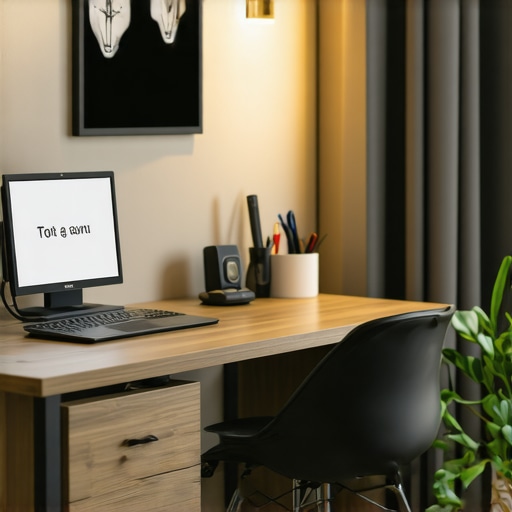 Maintaining an efficient and comfortable home office over the long term requires more than just initial setup; it involves choosing the right tools and establishing routines that keep your workspace functioning optimally. One of my go-to investments is an adjustable monitor arm. Not only does it allow quick repositioning to reduce glare and eye strain, but it also helps keep cords organized, freeing up valuable desk space. I personally use the Ergotron LX Desk Mount because of its durability and smooth articulation, which makes switching between sitting and standing positions effortless.
Another essential tool I rely on is a cable management system. Over the years, I’ve found that cluttered cables do more than look untidy; they can cause accidental disconnections and pose safety hazards. I recommend using vertical cable sleeves and adhesive clips, which are simple to install and make rerouting cables a breeze. These tools have helped me maintain a clean setup that is easy to troubleshoot and reconfigure as needed.
Software-wise, automation tools like Trello or Notion have transformed my productivity by keeping task lists, project timelines, and important notes all in one accessible place. I schedule weekly check-ins to review and reorganize my digital workspace, ensuring I stay on top of priorities without feeling overwhelmed. These tools have proven invaluable for long-term project management and keeping my workflow streamlined.
In terms of long-term results, consistent maintenance—such as regular cleaning, ergonomic adjustments, and software updates—prevents small issues from becoming major setbacks. For example, I set a quarterly reminder to reassess my chair height and monitor position, which has significantly reduced neck and back discomfort. Additionally, updating my software and security patches ensures my work environment remains protected and efficient.
Forecasting into future trends, I believe AI-powered ergonomic assessment tools will become standard, helping users automatically optimize their setup through real-time feedback. This will minimize physical discomfort and maximize productivity without constant manual tweaks.
**How do I maintain my home office tools over time?** Creating a routine is key. Implement monthly checks on equipment like chairs, desks, and monitor arms, and update your software periodically. Investing in quality tools that are easy to adjust and repair extends their lifespan and saves money in the long run.
If you’re ready to upgrade your workspace, try installing a highly adjustable monitor arm. A simple switch like this can greatly improve your posture, reduce glare, and keep your setup tidy. For more advanced suggestions, explore the [desk storage hacks](https://homeoffice.techgearshowcase.com/desk-storage-hacks-how-pros-organize-home-offices-in-2026) that complement your ongoing maintenance efforts.
Lessons That Changed My Home Office Game
One revelation was realizing that the tiniest adjustment in monitor angle could drastically reduce eye strain. I used to think I needed the latest tech gadgets, but it turns out, simple tweaks like repositioning my desk illuminated what I was missing. Experience taught me that paying attention to light flow and reflection has a bigger payoff than any fancy accessory.
I also learned that excessively cluttered spaces diminish focus more than I expected. Minimalism isn’t just aesthetic—it’s practicality. By decluttering my workspace and organizing smartly, I unlocked mental clarity and saved precious time, making work sessions more efficient and less stressful.
Another pivotal lesson was the importance of routine. Regularly reassessing my setup, staying nimble to change, and maintaining active routines keep my environment aligned with my evolving needs. These habits safeguard my long-term comfort and productivity, especially as tech and work patterns shift in 2026.
Tools That Transformed My Productivity
My go-to upgrade has been an adjustable monitor arm, like the Ergotron LX Desk Mount. It allows instant repositioning to minimize glare and enhances ergonomics. I also swear by discreet cable management systems such as vertical sleeves and clips, which keep my workspace tidy and safe, preventing distractions and accidents.
For digital workflow, tools like Notion keep my tasks organized and my thoughts clear. Regular software updates and backups are non-negotiable—they keep my setup secure and responsive. These investments foster resilience and allow me to adapt quickly when faced with new work challenges or tech advances.
The Power of Small Shifts
The future of home office efficiency isn’t about grand renovations; it’s about tiny, deliberate improvements. Whether it’s adjusting your screen brightness, integrating subtle storage solutions, or refining lighting angles—these small actions accumulate, transforming your workspace into a powerhouse of productivity. I encourage you to view your setup as a dynamic environment, one that evolves as you learn and grow.
Have you tried any tweaks that unexpectedly boosted your focus or comfort? Share your experience below—I’d love to hear how minor adjustments made a major difference for you!

I totally relate to the frustration of glare, especially during those sunny afternoons when it feels like the light is conspiring against your screen. When I first started paying attention to my workspace setup, I found that simply angling my monitor away from direct sunlight made a remarkable difference. Using adjustable blinds and positioning my desk relative to the windows helped me avoid glare without sacrificing natural light. The most surprising part was realizing how much the monitor’s height and tilt affected eye comfort and focus — a small change that paid huge dividends. I’m curious, though: have others tried using anti-glare film or matte screen protectors? I’ve recently added one, and it significantly improved visibility, particularly in bright conditions. How do you manage glare when sunlight changes throughout the day? Would love to hear practical tips from this community on keeping screens glare-free all day long.